Schema Markup for Restaurants: Quick Implementation Guide
Add Restaurant, Menu, and Review schema to your site. Step-by-step guide to local SEO structured data that drives more diners through organic search results.
Why Schema Matters for Restaurant
Restaurant discovery has fundamentally changed. Diners no longer just search "Italian restaurant near me" on Google — they ask AI assistants "where should I eat tonight for a date in the West Village" or "best family-friendly brunch spots in Austin." Both channels rely on structured data to deliver accurate results. Google's local pack — the map with three restaurant listings at the top of search results — favors restaurants with complete Restaurant schema including cuisine type, price range, hours, and ratings. Without this data, your restaurant competes at a disadvantage against the hundreds of nearby competitors who have it. AI engines take this further: when recommending dining options, they parse Menu schema to understand your offerings, AggregateRating to gauge quality, and opening hours to confirm availability. The restaurants that invest 30 minutes implementing proper schema markup gain a visibility advantage that drives reservations and walk-ins for years — while competitors remain invisible to the AI-powered dining recommendations that are becoming the default way people choose where to eat.
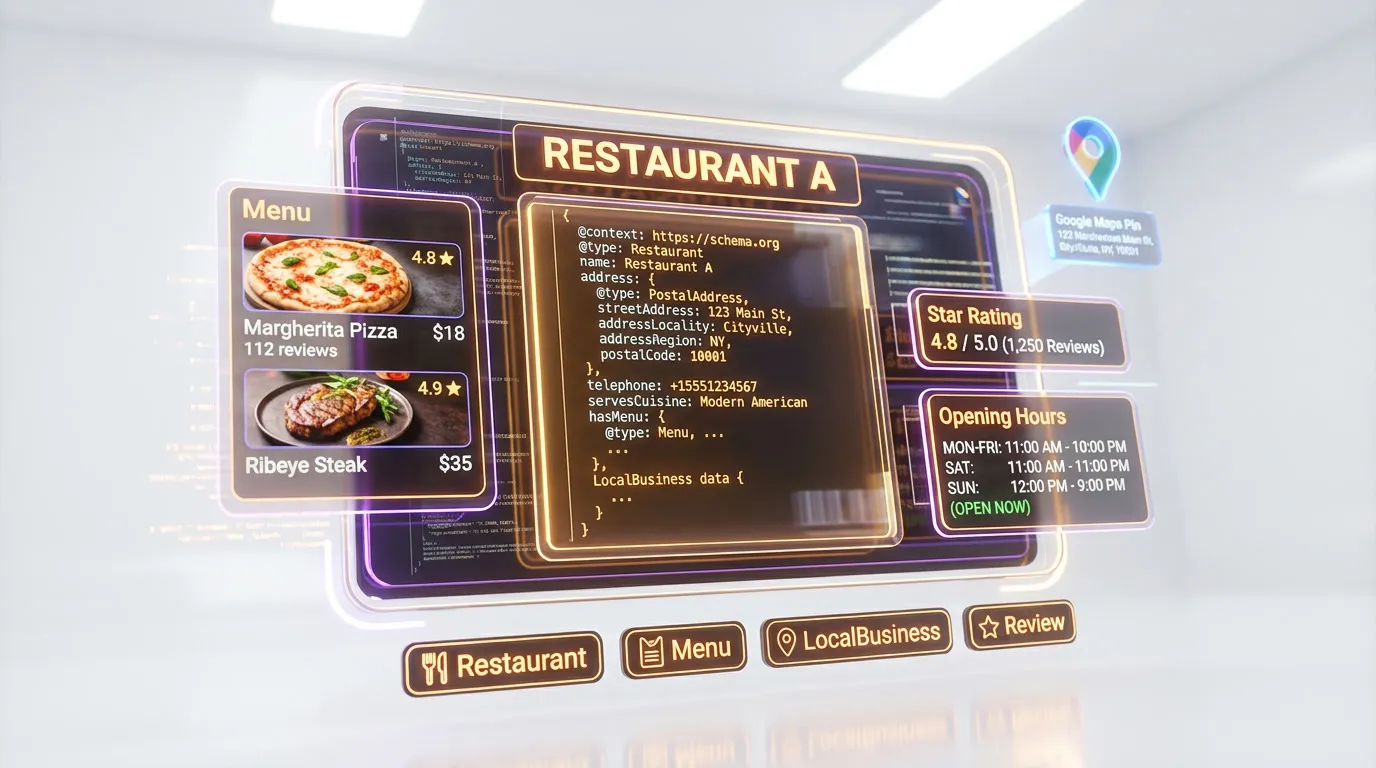
Essential Schema Types for Restaurant
Implement these 4 schema types to maximize your search visibility and AI engine compatibility.
1.Restaurant
CriticalGoogle Rich ResultsEnables rich results with hours, cuisine, price range, and ratings
{
  "@type": "Restaurant",
  "name": "Bella Italia",
  "servesCuisine": "Italian",
  "priceRange": "$$",
  "address": {
    "@type": "PostalAddress",
    "streetAddress": "123 Main St",
    "addressLocality": "Austin",
    "addressRegion": "TX",
    "postalCode": "78701"
  },
  "openingHoursSpecification": [{
    "@type": "OpeningHoursSpecification",
    "dayOfWeek": ["Monday", "Tuesday", "Wednesday", "Thursday", "Friday"],
    "opens": "11:00",
    "closes": "22:00"
  }]
}
Pro tip: Use the specific "Restaurant" type instead of generic "LocalBusiness" — it unlocks cuisine-specific rich results and helps Google match your listing to food-related queries. Add geo coordinates for precise map placement.
2.Menu
RecommendedStructures your menu for search engines and AI to parse and display
{
  "@type": "Menu",
  "name": "Dinner Menu",
  "hasMenuSection": [{
    "@type": "MenuSection",
    "name": "Pasta",
    "hasMenuItem": [{
      "@type": "MenuItem",
      "name": "Spaghetti Carbonara",
      "description": "Classic Roman pasta with guanciale and egg.",
      "offers": {
        "@type": "Offer",
        "price": "18.00",
        "priceCurrency": "USD"
      }
    }]
  }]
}
Pro tip: AI assistants frequently answer "how much does [dish] cost at [restaurant]" — Menu schema with pricing is how they get accurate answers. Structure your menu by section (Appetizers, Mains, Desserts) for clean AI parsing.
3.AggregateRating
RecommendedGoogle Rich ResultsDisplays star ratings in search results to attract more clicks
{
  "@type": "AggregateRating",
  "ratingValue": "4.6",
  "bestRating": "5",
  "ratingCount": "234",
  "reviewCount": "189"
}
Pro tip: Nest AggregateRating inside your Restaurant schema, not as a separate entity. The rating must reflect genuine reviews displayed on your website — Google prohibits using third-party ratings (like Yelp or Google reviews) in your own schema.
4.FAQPage
RecommendedGoogle Rich ResultsCaptures featured snippets for common dining questions
{
  "@type": "FAQPage",
  "mainEntity": [{
    "@type": "Question",
    "name": "Do you take reservations?",
    "acceptedAnswer": {
      "@type": "Answer",
      "text": "Yes, we accept reservations online and by phone. Walk-ins are welcome based on availability."
    }
  }]
}
Pro tip: Include questions about dietary accommodations ("Do you have gluten-free options?"), parking, private dining, and group bookings. These are the exact questions diners ask AI assistants before choosing a restaurant.
Common Mistakes to Avoid
These are the most frequent restaurant schema issues we see during audits.
#1 — Missing servesCuisine and priceRange on Restaurant schema
These two properties are what Google uses to match your restaurant to cuisine-specific and budget-specific queries. Without them, your rich result lacks the key information diners scan when choosing between search results.
Fix: Add servesCuisine with your primary cuisine type (e.g., "Italian", "Japanese", "Mexican") and priceRange using the $ symbol convention ($, $$, $$$, $$$$) that matches your Google Business Profile.
#2 — No opening hours specification
Restaurants without OpeningHoursSpecification in their schema cannot display hours in rich results. AI assistants also cannot tell users whether you are currently open — a dealbreaker for "open now" queries.
Fix: Add OpeningHoursSpecification for each day of the week with opens and closes times in 24-hour format. Include separate entries for different schedules (lunch vs dinner, weekday vs weekend).
#3 — Menu items without prices
Menu schema with dish names but no prices provides incomplete information. AI engines cannot recommend your restaurant for budget-specific queries, and Google cannot display pricing in menu-related rich results.
Fix: Add an Offer with price and priceCurrency to each MenuItem. Even if prices change seasonally, having approximate pricing is significantly better than none for both search and AI visibility.
#4 — Using generic LocalBusiness instead of Restaurant type
LocalBusiness is a parent type that lacks restaurant-specific properties like servesCuisine, hasMenu, and acceptsReservations. Using it instead of Restaurant means missing out on cuisine-specific rich results and AI dining recommendations.
Fix: Change @type from "LocalBusiness" to "Restaurant" (or a more specific subtype like "FastFoodRestaurant", "CafeOrCoffeeShop", or "BarOrPub" if applicable). This unlocks all restaurant-specific schema properties.
How to Test Your Schema
- 1View your restaurant homepage source and locate the JSON-LD script — verify it uses @type "Restaurant" (not "LocalBusiness") with servesCuisine and priceRange
- 2Paste your schema into Rankeo's free Schema Validator to check for missing required properties like address, telephone, and openingHoursSpecification
- 3Run Google's Rich Results Test on your homepage and menu page to confirm rich result eligibility for Restaurant and Menu types
- 4Verify that your schema address, phone, and hours exactly match your Google Business Profile — inconsistencies hurt local pack rankings
- 5Search for your restaurant on Google and check whether rich results (hours, cuisine, rating) appear beneath your listing — if not, resubmit the URL in Search Console
Generate Restaurant Schema Instantly with Rankeo
Stop writing schema markup by hand. Rankeo's schema generator builds a complete, validated @graph array for your restaurant site in seconds — including all 4 essential types above.
- Programmatic builders — no AI hallucinations
- Connected @graph with proper @id references
- Validated against Google Rich Results requirements
- One-click copy to your site
The Bottom Line
Restaurant schema markup is the fastest local SEO win available to dining establishments. With Google's local pack driving the majority of restaurant discovery clicks and AI assistants increasingly recommending dining options, proper Restaurant, Menu, AggregateRating, and FAQPage schema ensures your restaurant appears with the rich details diners need to choose you. Most independent restaurants have zero schema markup — implementing it gives you an immediate competitive advantage in your local market.
Frequently Asked Questions
What schema types does a restaurant website need?
Restaurant schema with cuisine, hours, and price range is essential. Add Menu schema for your dishes with pricing, AggregateRating for review stars, and FAQPage for questions about reservations, dietary options, and parking. These four types maximize your local search and AI visibility.
Does schema markup help restaurant SEO?
Yes. Restaurant schema enables rich results with hours, ratings, cuisine type, and price range directly in search. This rich information drives more clicks than plain listings and helps Google match your restaurant to specific dining queries in your area.
How do I add schema to my restaurant website?
Add a JSON-LD script tag on your homepage with Restaurant type including your address, hours, cuisine, and price range. Nest your Menu schema within or link it via hasMenu. Test with Google's Rich Results Test to verify eligibility before deploying.
Should I include my full menu in schema markup?
Include at least your signature dishes and popular sections. A complete menu in schema is ideal but not required — even partial Menu markup with your top 10-15 items and pricing helps AI engines answer dish-specific queries and compare your offerings against competitors.
How does schema affect AI restaurant recommendations?
When someone asks an AI assistant for restaurant recommendations, it parses Restaurant schema for cuisine, price range, and ratings, plus Menu schema for specific dishes. Restaurants with complete structured data get recommended with accurate details, while those without schema are either described inaccurately or omitted entirely.
Can Rankeo generate restaurant schema automatically?
Yes. Rankeo's Schema Generator creates a complete @graph with Restaurant, Menu, AggregateRating, and FAQPage schema tailored to your establishment. It pulls your business details and validates everything against Google's requirements — no manual JSON-LD coding needed.
More Schema Guides
Explore implementation guides for other industries.
4 schema types
4 schema types
4 schema types
4 schema types
4 schema types
4 schema types
4 schema types
4 schema types
4 schema types
Want a full SEO + GEO strategy for your restaurant site?
See Rankeo for RestaurantLearn about the difference between SEO, AEO, and GEO.
Read on the blogReady to fix your structured data?
Rankeo audits your schema, generates fixes, and monitors rich result eligibility — all in one dashboard.